Download Instagram Reels to Camera Roll - Free Tool (2025)
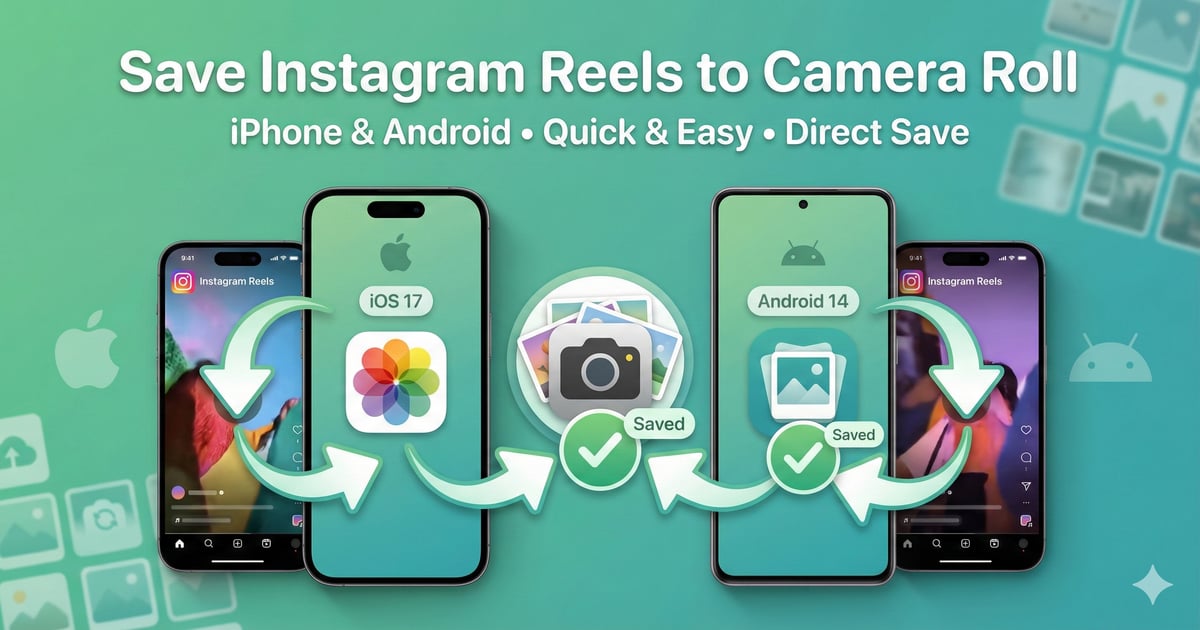
Instagram doesn't let you save Reels to your camera roll natively - the built-in "Save" button only bookmarks them inside the app. But with ReelSaver's free tool, you can download ANY Instagram Reel directly to your iPhone Photos or Android Gallery in under 30 seconds. Try the free tool now or read the complete guide below.
Why Save Reels to Your Camera Roll?
Instagram's built-in "Save" feature only bookmarks Reels within the app itself - they don't actually download to your phone. Using ReelSaver's free Instagram downloader, you can save Reels to your camera roll. Here are the key reasons why:
Offline Access
Watch your favorite Reels anytime, even without internet connection or data.
Easy Sharing
Share Reels via text, email, or other apps outside of Instagram.
Content Creation
Use Reels as inspiration or reference material for your own content projects.
Backup & Archive
Keep personal copies of memorable Reels before they might be deleted.
Step-by-Step: Download Reels to Camera Roll (30 Seconds)
Follow these simple steps to download any Instagram Reel directly to your iPhone or Android camera roll using our free ReelSaver tool. The entire process takes less than 30 seconds per Reel - no app installation required.
Open Instagram and Find the Reel
Launch the Instagram app on your iPhone or Android device. Navigate to the Reel you want to save to your camera roll. You can find Reels in your feed, on the Reels tab, or on someone's profile.
Copy the Reel Link
Tap the three dots (•••) button on the right side of the Reel. Select 'Copy Link' from the menu that appears. The Reel's URL is now copied to your clipboard.
Visit ReelSaver
Open your mobile browser (Safari for iPhone, Chrome for Android) and go to reelsaver.tech. Our tool works directly in your browser - no app installation required.
Paste and Download
Paste the copied Reel link into the download box on ReelSaver. Tap the Download button. The Reel will be processed and ready to download in seconds.
Save to Camera Roll
Once processed, tap the 'Download Video' button. On iPhone, tap the download icon and choose 'Save to Photos'. On Android, the video automatically saves to your Gallery/Photos app in the Downloads folder.
100% Safe & Private
ReelSaver doesn't store your downloads or track your activity. All processing happens in real-time, and videos are streamed directly to your device. Your privacy is completely protected.
Platform-Specific Instructions
While the basic process is the same, each platform has slight differences in how videos are saved to your camera roll.
iPhone (iOS)
- 1.After downloading the Reel in Safari, tap the download arrow icon in the address bar (top right)
- 2.Tap on the downloaded video file to preview it
- 3.Tap the share icon (box with arrow) in the bottom left
- 4.Select "Save Video" to save it to your Photos app
- 5.The Reel now appears in Photos → Recents and Photos → Videos
Pro Tip: Create a custom album in Photos called "Saved Reels" to keep all your downloaded Reels organized in one place.
Android
- 1.After clicking download in Chrome, the video downloads automatically to your device
- 2.You'll see a notification that the download is complete
- 3.Open your Gallery or Photos app
- 4.Navigate to Downloads folder or Recent photos
- 5.Your saved Reel is ready to view, edit, or share!
Pro Tip: You can move the video from Downloads to any other folder in your Gallery app for better organization.
Troubleshooting Common Issues
Running into problems? Here are solutions to the most common issues when saving Reels to your camera roll.
Video won't save to Photos app on iPhone
This usually happens due to permission settings. Here's how to fix it:
- Go to Settings → Safari → Downloads
- Make sure the download location is set correctly
- Go to Settings → Privacy → Photos
- Enable Safari to access your Photos library
- Try downloading the Reel again
Can't find downloaded Reel on Android
Check these locations:
- Open Files app → Downloads folder
- Open Gallery/Photos app → Downloads album
- Check your notification panel - tap the download notification
- Look in internal storage → Download folder using a file manager
Video quality is lower than expected
ReelSaver downloads Reels in their original upload quality. If quality seems low:
- The original Reel may have been uploaded in lower quality
- Instagram may have compressed the video during upload
- Make sure you have a stable internet connection during download
- Try downloading from a different Reel to compare quality
Download button doesn't work
Try these solutions:
- Make sure you copied the complete Reel URL
- Check that the Reel is from a public account
- Clear your browser cache and cookies
- Try a different browser (Chrome, Safari, Firefox)
- Refresh the ReelSaver page and try again
"Storage full" error when saving
Your device doesn't have enough free space. Solutions:
- Delete unwanted photos, videos, or apps to free up space
- Move existing media to cloud storage (iCloud, Google Photos)
- Clear app caches from Settings
- Check Settings → Storage to see what's using space
Frequently Asked Questions
Can I save Instagram Reels directly to my iPhone camera roll?
Yes! Using ReelSaver, you can easily save any Instagram Reel directly to your iPhone's Photos app. Simply copy the Reel link, paste it into ReelSaver, download the video, and it will be saved to your camera roll. The entire process takes less than 30 seconds.
How do I save Reels to my Android gallery?
On Android devices, saving Reels to your gallery is straightforward. After downloading the Reel through ReelSaver, the video automatically saves to your Gallery app (or Photos app on some devices) in the Downloads folder. You can then move it to any album you prefer.
Why won't Instagram let me save Reels to my camera roll directly?
Instagram's built-in download feature only saves Reels to the Instagram app itself, not to your phone's camera roll. This is by design to keep content within the Instagram ecosystem. However, third-party tools like ReelSaver allow you to save Reels directly to your device's Photos or Gallery app.
Do saved Reels include the original quality?
Yes! ReelSaver downloads Reels in their original quality as uploaded to Instagram. For most Reels, this is 1080p HD quality. The video maintains the same resolution, framerate, and quality as the original post.
Can I save Reels from private accounts to my camera roll?
No, you can only save Reels from public accounts or accounts you follow (if they're private). Instagram's privacy settings prevent downloading content from private accounts you don't have access to. This protects users' privacy and content.
Will the creator know I saved their Reel to my camera roll?
No, creators are not notified when you save their Reels using external tools. Instagram only notifies creators about engagement within the app (likes, comments, shares). Downloading through ReelSaver is completely anonymous.
What's the difference between 'Save' in Instagram and saving to camera roll?
Instagram's 'Save' feature bookmarks the Reel within the Instagram app only - it doesn't download it to your phone. Saving to camera roll downloads the actual video file to your device's Photos/Gallery app, allowing you to access it offline, share it outside Instagram, or edit it with other apps.
Can I save multiple Reels to my camera roll at once?
Currently, you need to save Reels one at a time through ReelSaver. However, the process is very quick (under 30 seconds per Reel), so saving multiple Reels only takes a few minutes. We're working on a batch download feature for the future.
Where do saved Reels go on my iPhone?
On iPhone, saved Reels appear in your Photos app in the 'Recents' album. They're also automatically organized in the 'Videos' album. You can create a custom album to organize your saved Reels separately if you prefer.
How much storage space do saved Reels take?
Most Instagram Reels are 15-90 seconds long and take 5-30 MB of storage space depending on length and quality. A 30-second HD Reel typically uses around 10-15 MB. Check your phone's available storage before downloading many Reels.
Best Practices for Saving Reels
- Respect Copyright: Only save Reels for personal use. Don't repost others' content without permission.
- Give Credit: If you do share saved Reels, always credit the original creator.
- Check Storage: Monitor your phone's storage space to avoid running out of room.
- Organize Albums: Create custom albums in your Photos app to keep saved Reels organized.
- Backup Important Reels: Use cloud storage to backup Reels you don't want to lose.
Start Saving Reels to Your Camera Roll Today
Downloading Instagram Reels to your camera roll is quick, easy, and gives you complete control over your favorite content. Whether you're on iPhone or Android, the process takes less than 30 seconds per Reel using our free Instagram downloader tool.
Remember to always respect creators' rights and only download content for personal use. With ReelSaver, you can build your own collection of inspiring, entertaining, and educational Reels that you can access anytime - even offline. You can also download Instagram Reels, save Instagram photos, or download Instagram stories.
Ready to start? Visit ReelSaver.tech and download your first Reel to your camera roll in seconds. No app download required, no registration needed - just paste, download, and enjoy!
Ready to Save Your First Reel?
Try ReelSaver now - it's 100% free and takes just seconds
Start Saving Reels